


PrivadoVPN SmartRoute is a multi-hop VPN routing feature that sends your encrypted traffic through two VPN locations instead of one. Instead of connecting directly to a single VPN server, SmartRoute creates a two-stage connection path with an automatically selected entry server and a user-selected exit server.
This gives you more control over how your traffic moves across the Internet while adding another layer of separation between your device and the websites or services you access online. The exit location is the region websites will detect, while the entry location is selected automatically based on network performance.
How SmartRoute Works
SmartRoute uses two VPN servers in sequence:
- Your device connects to a fast entry server selected automatically by PrivadoVPN.
- Your encrypted traffic is relayed through a second VPN server.
- The second server becomes the visible exit location seen by websites and online services.
This setup differs from a standard VPN connection, which only routes traffic through a single server.
How to Activate SmartRoute in the PrivadoVPN App
The exact layout may vary slightly depending on your device, but the process is generally the same across PrivadoVPN apps.
Step 1: Open the PrivadoVPN App
Launch the PrivadoVPN app on your device and sign in to your account.
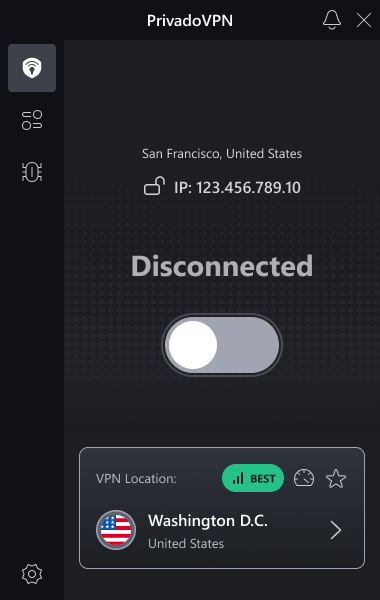
Step 2: Open the Settings Menu
Go to the Settings area inside the app.
Step 3: Find SmartRoute
Locate the SmartRoute option in the VPN settings menu.
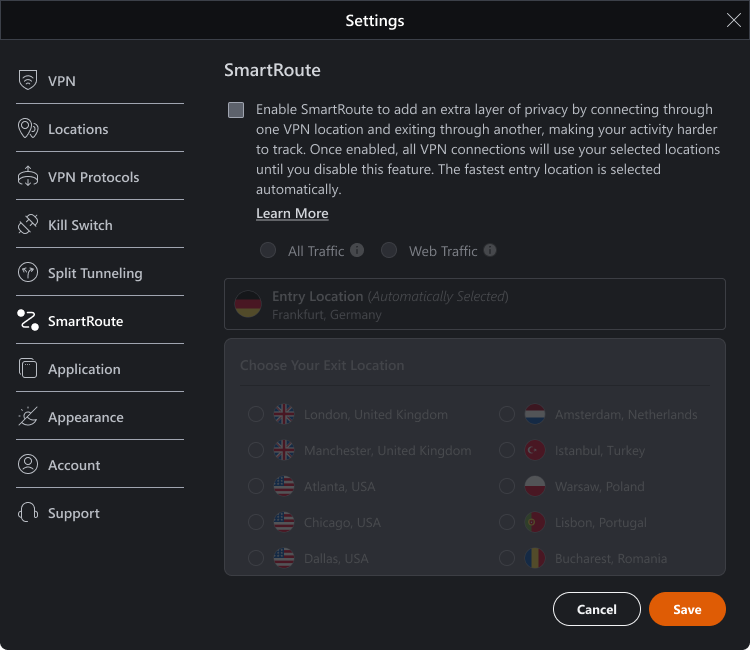
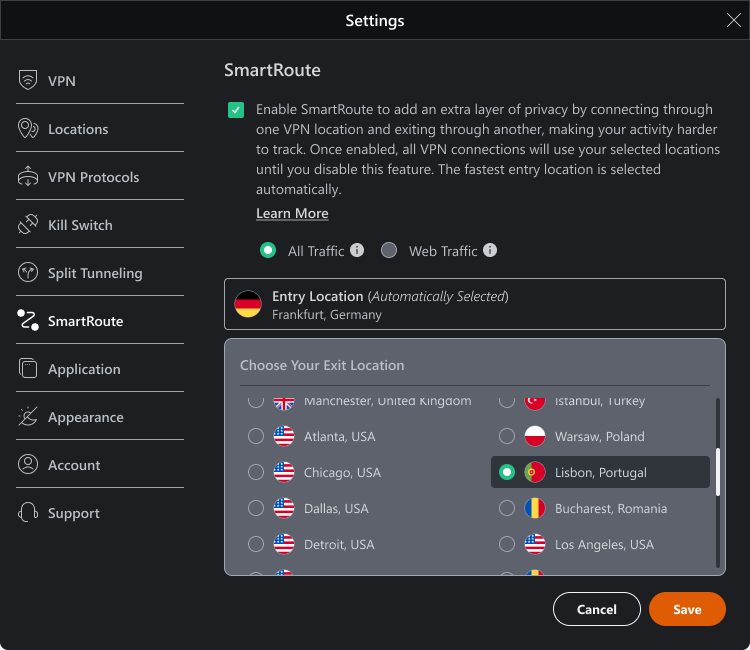
Step 4: Enable SmartRoute
Check the box next to the setting that begins with “Enable SmartRoute to add an extra layer of privacy...” to activate SmartRoute inside the app.
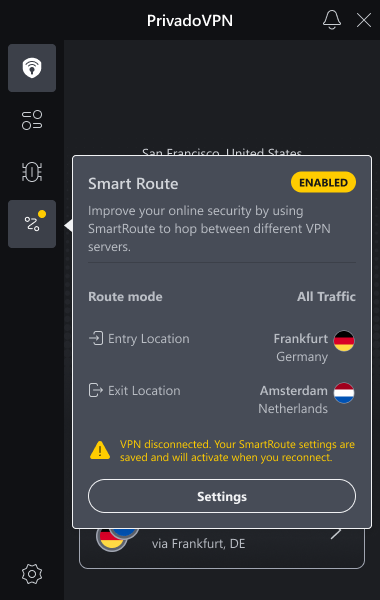
Once enabled, SmartRoute will remain active whenever you are connected to PrivadoVPN until you manually turn the feature off.
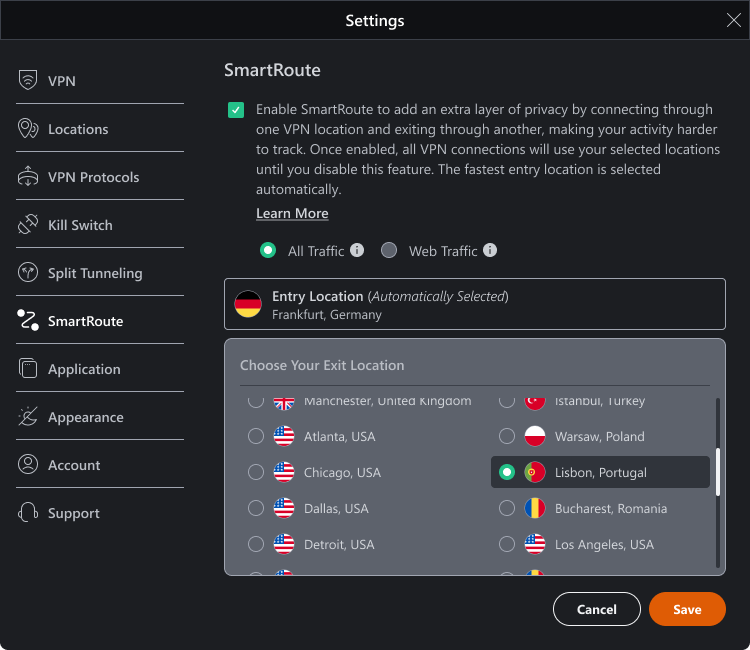
Step 5: Choose Your SmartRoute Mode
Select how you want SmartRoute to handle your traffic:
- All Traffic routes all Internet traffic through two VPN servers.
- Web Traffic routes Web browser traffic through two VPN servers while other apps continue using the standard VPN route.
Choose the option that best matches how you want to use SmartRoute.
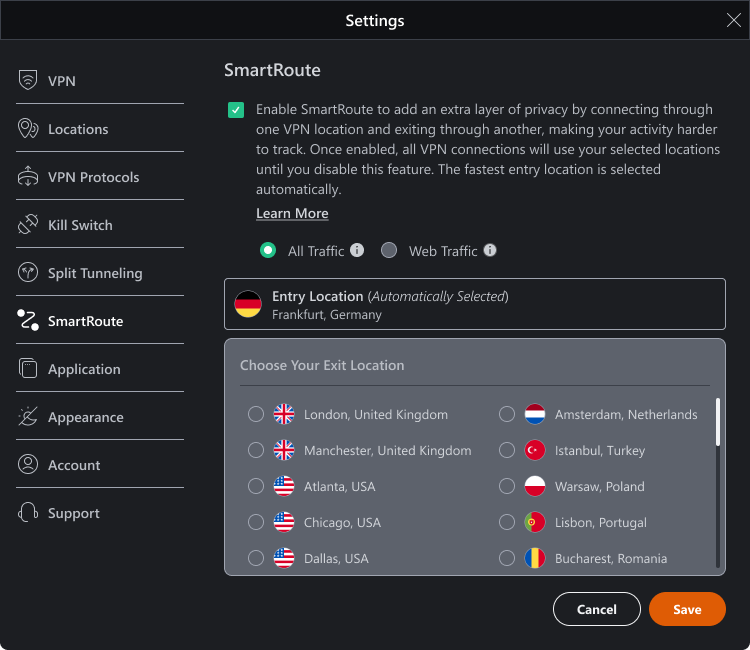
Step 6: Select Your Exit Location
Choose the country or region you want your traffic to appear from. PrivadoVPN will automatically select the fastest entry server available.
Step 7: Connect to the VPN
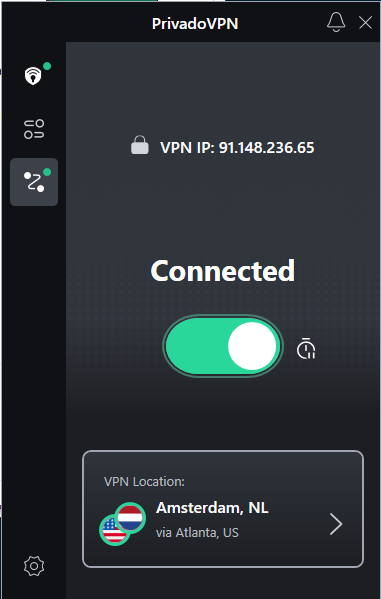
Connect to PrivadoVPN normally. Your traffic will now route through the SmartRoute connection path.
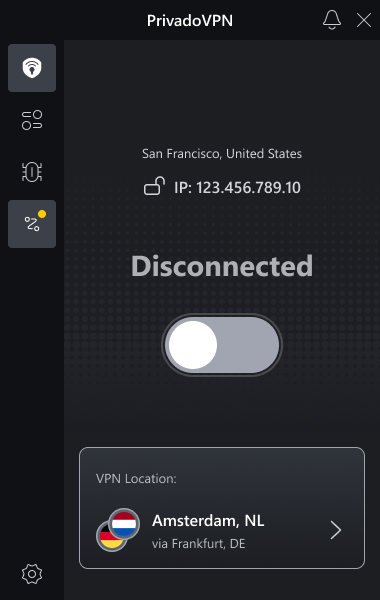
After SmartRoute has been activated, a dedicated SmartRoute button will appear on the app home screen. This gives you quick access to SmartRoute settings if you want to change the routing mode, adjust your exit location, or turn the feature off later.
Optional: Use a One-Time Multihop Connection
If you only want to use SmartRoute for your next VPN session instead of enabling it permanently, you can start a temporary multihop connection directly from the server list.
Open the server list inside the PrivadoVPN app and select the SmartRoute tab. From there, choose the exit location you want to use for your next VPN connection.
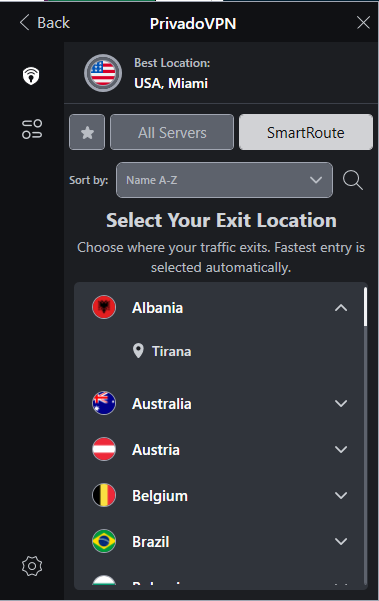
When you connect, PrivadoVPN will route your traffic through two VPN servers using SmartRoute. After you disconnect, the app will automatically return to a standard single-server VPN connection the next time you connect to your selected location.
When to Use SmartRoute
SmartRoute is useful when:
- You want additional privacy separation between your device and your visible VPN location
- You want traffic to appear from a specific country or region
- You prefer a multi-hop VPN connection instead of a standard single-server VPN route
- You want PrivadoVPN to automatically optimize the entry connection while still controlling the exit location
Benefits of SmartRoute
SmartRoute is designed for users who want more flexibility and privacy from their VPN connection.
Additional Privacy Separation
Because traffic moves through two VPN locations, it becomes harder to associate your device directly with the visible exit IP address.
Flexible Exit Locations
You can choose the country or region your traffic exits from while PrivadoVPN automatically handles the fastest entry routing.
Better Routing Control
SmartRoute helps balance privacy and performance by automatically selecting a strong entry connection while still allowing manual exit location selection.
SmartRoute vs Split Tunneling
SmartRoute and Split Tunneling are different features.
- SmartRoute creates a two-stage VPN connection using two VPN servers.
- Split Tunneling controls which apps or websites use the VPN connection and which bypass it.
You can use SmartRoute to add another routing layer while still using Split Tunneling separately for app-level traffic control.
When a Standard VPN Connection May Be Better
A regular VPN connection is usually the better choice when maximum speed and lower latency are more important than multi-hop routing. Because SmartRoute adds another routing step, some connections may experience slightly increased latency compared with a standard VPN session

